Tag: Carroll University

App GenerationCamtasiaCurious DavidScreencastingScreenflow

In Search of the “Best” Screencasting Software

Headshot4blogs


When I am especially busy, I encourage my student research team to use their creativity to surprise me. Here is their preliminary work for an ebook we are writing that will give student guides to software we are using. I am delighted by their work. For other guides to Screencasting tools see the excellent compilation by Richard Byrne and his Free Technology for Teachers blog.

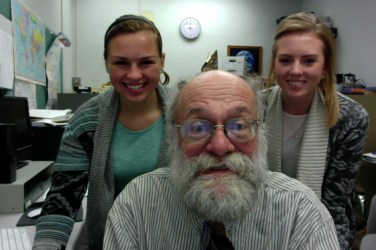
Group Photo


As a student research team for Dr. Simpson we always try to find the best software to use on the task at hand  which allows us to be most efficient and successful. Here we are going to compare three different screencasting tools we have become familiar with over the past few weeks: ScreenFlow, Voila, and Camtasia. All have the same purpose, but have differences. Which screen casting tool is best for you depends on the type of screen cast you want to make.We will show you screen casting examples from each of the different softwares.

When we used Voila to create a tutorial on how to use SurveyMonkey, we realized we were missing some necessary additional software. Without the additional software we could not hear our voice recording in our video. As a work-around solution we converted our video into ScreenFlow. To resolve the problematic issue with Voila,  Tia, Arianna, and Dr. Simpson later downloaded the necessary additional software which automatically presented itself upon our request to record using a microphone. Once this software was installed we ran a trial video in order to ensure sound could be heard. Success, at last. Having discovered how to properly use Voila, Dr. Simpson asked his research team to make a video in order to compare Voila to the video made using ScreenFlow.

Voila is a great screen casting software that can be downloaded on your iMac, iPhone, and iPad. Since Evernote is getting rid of the software, Skitch, this new feature was created in place of it with more features that are very beneficial.

When using this app you are able to take a screen shot of your full home screen, or capture a certain section of your home screen with the different screen shot tools. You are also able to overlap multiple screenshots in the software as well. In addition, if you would like to record your voice or anything on the computer while using the device you are able to do a recording. After you have taken the recording, it will open up in Voila and you can trim your new video and have the recording play over the screen casting. One flaw of Voila, is that you must download an additional app to have noise with your recording. You also need to export your recording to an app like Imovie to complete and edit your recording.

Voila allows you to edit your screen shots in multiple different ways. Some really nice features that Skitch doesn’t have is that you are able to add stickers to your screen shots as well as add a spotlight to a certain part of the screen shot. The spotlight helps a section you select stand out and blur out the rest of the background of the screen shot as much as you would like. Another feature that you are able to do that Skitch can’t is blur out in different ways. You can do motion blurs, the static blur, a pixelated blur, and etc. Also, there are different kinds of arrows you can use in Voila to lead someone from one spot of your screen cast to another to show them instructions, like where to go from point A to point B, and etc. Voila allows you to marquee the pictures as well. This means that with any of the shapes they have or what you create, you are able to put that shape on a certain part of the screen shot and duplicate it. So that part you’ve chosen can be more bolded, or put in another screen shot. Below is an example of the different effects and borders that Voila has available to us.

Below is the video we started out by using Voila, but turned to using ScreenFlow.

ScreenFlow is one of the first screencasting tools we have used as a team since the the announcement of Skitch being discontinued.  ScreenFlow is the most simple screen casting tool out of the three when you are directly recording. When creating your screen cast, you can have as many or few screens open while you are recording. There are also options to have a window showing you creating your recording as well. ScreenFlow is primarily used for Mac users whereas Voila and Camtasia can be used on many different types of computers. The best way to start and end your videos in ScreenFlow is by using shortkeys, which holds true to Voila and Camtasia as well.

In addition, Voila has many perks to it. Instead of just creating screen casting recordings, you can also create snap shots of your screen. They have many editing options for both photos and videos. With your photos, you can edit both your screen shots as well as photos in your library. Voila has the best organization for your photos and screen casting videos you create. They have many folders you can organize your creations into with easy access to all. One cool thing you can do is while in Voila, there is a button where you can go on the web. In reality, you do not even need to leave the application to take screenshots of a certain webpage you would like to add to your screencast, which also helps maintaining organization.

Camtasia is more similiar to Voila in complexity of the software. While using Camtasia, it is more used for the video aspects of screen casting. You can add many different types of transitions or textboxes as you go. One cool thing with the different transitions is that you can have them fade in and out at any time frame in your screen cast. This helps create a more exciting and organized screen cast. One thing that Camtasia has that neither Voila or ScreenFlow has is the ability to layer both videos and pictures into one screen cast. Also, Camtasia is accessible on either Macs or PCs. Camtasia allows one to film a video using their software, which will then automatically be accessible to edit. One does not have to save the video and download it to another software to edit.

On the upper left hand side of Camtasia, there are the categories Media, Annotations, Transitions, and Animations. The Media button allows one to access all the videos filmed using Camtasia or download videos saved onto the computer. Under the Annotations tab, text bubbles, arrows, shapes, highlight, symbols, or keyboard keys are located and can be added to the video. Theses options come in multiple different colors which can be adjusted on the video to be different sizes and in different locations on the video. The Transitions tab allows one to add effects at the beginning or the end of a video. Animations can also be added to the video to zoom in or zoom out, fade in or out, tilt left or right, and even create a custom animation. As a side note, if one applies the zoom in feature, to return to the way the video was originally, a zoom out animation must be applied.

The other features that one can apply to the video are Video FX, Audio FX, Cursor FX, and Gesture FX. To change the color of the screen, add a glow to the screen, add a device frame around the video, and many more are features that are located under the Video FX tab. Audio FX allows one to change the volume of the video, the pitch, reduce the background noise, and change the speed of the clip. Cursor FX will highlight, magnify, or spotlight where the cursor is throughout the video. One can also highlight right or left clicks that are made using the computer mouse during the video. Under the Gesture FX tab, one can double tap, pinch, swipe, and tap certain areas during the video.

Each of these features can be customized to show up for different lengths and times throughout the video. Camtasia has two lines of recordings on the bottom lines to edit. The first line is the Webcam recording while the second line is the video of the screen. If you want to add an effect to the entire video, such as a transition, the effect needs to be added to both lines.

We would appreciate any feedback or personal experience using Camtasia or any video editing software.


Carroll UniversityCarroll University USACurious DavidJane Hart's Top 100 Learning ToolsPSY205

Teaching Tools: SPSS, InStat, StarQuiz, Camtasia, and Research Randomizer.

Headshot4blogs


I am moving towards requiring that all my students demonstrate to me minimal mastery of the use of the technology-based teaching and learning tools I introduce into the classroom (e.g. Quizlet,  Starquiz). My esteemed student research students do the pilot work.

I asked Tia and Ariana to show me that they could use Camtasia to create a screencast of how to access two statistical packages I introduce in PSY205 (InStat  and SPSS) and one piece of software (research randomizer) that allows students to perform random assignment and random sampling.

Take a look:

I now will assess whether each of my forty-four students can access these tools (based on Tia and Arianna’s lessons) and use them to enhance their learning. Here is a benchmark for what they should know.


Carroll ReflectionsCarroll University USACurious DavidJane Hart's Top 100 Learning ToolsMiscellaneous

15 Minutes in My Digital Life As a Professor

Cap and Gown

I’ve been so busy lately that yesterday I almost didn’t have time to change out of my academic regalia before beginning my PSY205 Statistics and Experimental Design course. Thanks to Jenny Percy for capturing this “precious moment”.

My social media day usually begins at 5:30 a.m. with a quick look at my Carroll email, my Twitter feed, my Facebook and LinkedIn accounts. If I see an article from the Chronicle of Higher Education or Inside Higher Education worth sharing, I pass it on to  Twitter, LinkedIn and Facebook followers. My restricted “Twitter feed” often appears on the left of the window of applications I am using like this WordPress software.

Here is what I mean (courtesy of my Snagit capturing software and Screencast.com).

Click me: 

Twitter primarily serves me as a personal professional development tool. Facebook is a rich source for my staying in touch with alumni (NO, Kim and Ryan, I DO NOT WANT a party in 2019). LinkedIn has proven to be a wonderful way to reconnect and stay connected to Alumni —So great reconnecting with you recently, Dave Verban!—, Members of the Board of Trustees, and Schneider Consulting Clients.

Time to meet with my colleague and FB “friend” Peggy Kasimatis.

Headshot4blogs


Curious David

A Student-Generated WordPress Tutorial for My Carroll Students

Headshot4blogs

Recently there has been a campus-wide discussion about the need to include writing experiences across the curriculum and across a student’s learning years here. I’ve become a strong believer in giving students opportunities to use blogging software and to give them mentored practice in writing thoughtful, civil  responses online to articles which are published online.

I asked two of my research assistants (Alison and Lizzy) , before I left today, to create for me a screencast tutorial using the Camtasia software they just had learned about a basic student guide about how to use WordPress. In their guide they show how to create an account, how to follow someone else’s blog pieces, and some of the many capabilities of WordPress.

I am quite impressed how on short notice, with no supervision from me, they were able to exceed my high expectations. How fortunate I have been across the years from my first student assistant, Larry Jost, until now to work closely with such wonderful fellow learners!

Here is Alison and Lizzy’s tutorial:

Any comments or feedback would be much appreciated.


Carroll ReflectionsCurious DavidJane Hart's Top 100 Learning ToolsPersonal Learning Toolstechnology tools

Changes: How much tinkering should one do with a course that seems to work well?

Headshot4blogs

Carroll has become a special place to me. I have been influenced greatly by its students, faculty, staff, administration, and alumni. By its traditions, theater productions and its music.

There are lots of changes these days occurring at Carroll. Some of them are physical, others organizational. Some things never change (read between the lines:); some things never should change.

I asked research assistants Alison and Lizzy to document some of the physical changes. Here is what they produced:

I continue to experiment with my “best” course (Statistics and Experimental Design) to make it better by finding the right balance of technology-assisted and personally- delivered instruction. Here is how I have taught it in the past. I have been pleased at the helpfulness, useful feedback and receptiveness of students past and present as I experiment.

This semester I was influenced in what did the during the  first week of class by a Chronicle of Higher Education thought piece about making best use of the first class day.

I began the class wanting to test the sound systems so I shared this amazing tribute to David Bowie:

.

Instead of calling out the class list to take attendance I give a quiz every day with immediate feedback which goes into a student portfolio. I also call upon a random group of students (selected by students using random sampling software to select the lucky students). Two students won free copies of my workbook!

Since then I have introduced them to SPSS and InStat (i.e. that the latter software exists) and to Survey Monkey.

Here is something Lizzy and Alison produced illustrating one of these tools:

I have also shown them Quizlet, started urging them to read germane articles from the Chronicle of Higher Education, and attempted to alert them to ethical issues about research by sharing lessons I have learned from Diederik Stapel.

To date, I seem to have highly engaged students learning and eager to learn. The first exam is February 10.

I am now invite their feedback and yours.


Curious David

Winding Up—Winding Down

Headshot4blogs
With baseball season approaching (and a vague but definite retirement date in sight of no later than May, 2019), it is time to focus on accomplishing a number of things in the near future. One goal is to better master the capabilities of WordPress.  A good way to do that is to write a lot. I’ll be experimenting with different WordPress “themes” (and different widgets). I welcome your feedback or advice.

I also want to master creating screencasts and to “publish” electronically some student-written guides to the use of internet learning tools. I envision continuing to write, to teach, and to learn even after I formally leave “Carroll Land”.

I’m discovering that one can indeed teach an “old dog” new tricks:

P1060403

This semester I have much more time to reflect, to learn, and to finish tasks (some of which I began up to 10 years ago!) because my Research Seminar was canceled for not having at least 10 students. Hence, I am teaching only one class PSY205 (two sections) with its two laboratories. Fortunately I have four VERY good student research assistants who are willing to learn with me so we’ll have fun, learn much, and be productive. Right now two of them (Arianna and tia) are next door preparing a Camtasia Studio screencast. Let’s see what they have produced. What I am sharing below is TOTALLY their “production” after my giving them guidelines of what I wanted. I am impressed.

We’ll see what the other two team members can do when they come in shortly.

As always your feedback is welcome.


Curious David

What do my research students do in my absence? Exploring Camtasia

IMG_0015Despite the semester only being a month old, I have been unusually busy with other Carroll matters at times when I ordinarily would be working side-by-side with my research assistants. Fortunately, they are reliable, competent, and motivated enough to delight me with independent work. I assigned to several of them the task of investigating the relative strengths and weaknesses of several kinds of screen-casting software. Here is what they produced as part of an e-book project we are about to engage in.


Curious David

Top 100 Learning Tools 2015 Redux: My Student Research Team’s Perspective

Group Photo

After learning more about the Top 100 Learning Tools by Jane Hart, we decided to revisit them from the perspectives of how we have been using the tools in our lives or how our opinions have changed about some of them.

One of the tools we looked at was Twitter. With our research team, we debated how Twitter was a useful tool for learning and what unique features Twitter offered. One of our research team members, Arianna, did a screen flow tutorial on how to create and what one can do with a Twitter account. (Click here for Arianna’s tutorial of Twitter.) Arianna explained to us the features of Twitter that she uses in her life. For example, she would use hashtags for specific groups or classes in school to communicate between one another. Also, she liked the feature of being updated with news stories from around the world to stay connected. We are learning more about the features of Twitter and how this tool impacts the lives of many individuals, but we have not yet implemented Twitter into our daily lives.

Another tool that we have been using on a consistent basis is WordPress. Through Dr. Simpson, our research team has been getting more experience with the its many components. WordPress offers a variety of features that are easy to use and it allows one easily to construct an eye-appealing website. Some of the features we find especially enjoyable are the ability to add pictures or videos to blog posts to create a visually appealing blog piece or to add additional information. WordPress has a simple format which makes it easy to locate many features such as adjusting font text or size, adding media, making the blog post private or public, and adding tags to a piece. Hyperlinks can also be added to the text on a blog piece to take the reader to an additional website. Hyperlinks can take the reader to a previous blog piece or to any website on the internet. Through working with Dr. Simpson, we have the opportunity to work with WordPress on a weekly basis and continue to find new features and improve our WordPress skills. (Click here for our initial thoughts about WordPress.)

One tool that we have explored and thoroughly enjoyed is iMovie. iMovie allows one to create a video of video clips, images, or audio recordings. Through iMovie, one can add sound to the video, such as music, a voice recording, or sound effects. An effect can also be used to fade out the end of the sound. Pictures can also be added into iMovie that can then be displayed over the video. This allows the audience to hear the video that is being played but see the image. The length of the view time of the image can be adjusted, and once the image is done being displayed, the audience will once again see the video. Some other features of iMovie include adding title slides into the video, inserting transitions from one clip to the next, and adding an end/credit slides. These credit slides can also be added on top of the videos so that the video shows with text. One can share your iMovie to YouTube, Facebook, and Twitter. We  find iMovie to be a useful tool and we plan on using this tool for school projects, presentations, and for our research team. (Click here to see our quick tutorial on how to use iMovie).

A 3rd tool we recently have been learning and trying out ourselves is Evernote. Evernote allows you to create notes on your phone, computer, tablet or any device that can connect to the internet. These notes can be easily shared among these multiple devices so one can pick up where they left off on any of their devices. Even when not connected to Wifi, one can create and edit notes that will be synced automatically among all their devices once the device is connected again to Wifi. One feature of Evernote is making a notebook for a specific topic where one can store multiple notes and files under that topic. Evernote is useful when it comes to making to do lists for groceries, assignments, and setting reminders. Also, Evernote allows you to send pictures, notes, voice audios, and links to other individuals through a chat option. Content from multiple sources, such as web articles, photos, video, or notes can be saved in one place. This creates an easy way to save information in one folder instead of having the content in multiple locations. Evernote seems quite useful in the work setting for saving and sharing documents for collaborations and assignments with other members. We have downloaded the Evernote app for our phones and have been using the tool to share documents and ideas between members of the research team.  (Click here to see our Preliminary thoughts on Evernote).

Tia has extensive experience using Google Drive. Here are her thoughts she shared about it based on her experience before she journeyed off to participate in NCAA soccer competition.

I have been using Google Drive since I was in middle school. From the beginning I knew this would be a great collaborative site. Even in middle school, we often used the presentation slides. The best feature about Google Drive, is that you can share it with as many people as you would like to help contribute to creating a finished presentation. It helps accommodate everyone’s’ busy schedules and creates the flexibility for all members to be able to work on the project when it is convenient for yourself. Another cool feature in Google Drive is that there are chat windows under each of your projects. This creates a team atmosphere when finalizing a presentation or even a group essay. By being able to chat without interrupting the actual information you are presenting, it creates a lesser chance of accidentally deleting vital information. Google drive has a security system on your documents. There are different options you can choose when sharing a certain document. You can both share it to someone and have them be able to edit whatever they want, or share it with someone as a read-only copy. Google Drive can also keep you very organized under your email account. You can also access any of your files and folders where ever you are, as long as you have Wi-Fi.

Google Drive is very similar to any of the Microsoft Word applications. The benefit of Google Drive is the ability to work with multiple people on multiple different computers at one singular time. A few things I never knew about Google Drive were you can share a document you create up to any social media site. Google Drive can also be changed into 65 different languages. There is also an activity bar where you can search and see how many times you or your coworkers have edited a specific Google document or slides presentations. One thing that I do not like about Google Drive is that it does not always have the correct formatting for you to accomplish APA or MLA formatting. Many times, even this year in college, I have gotten points marked off on a paper submitted through Google Drive due to having the incorrect indentations while citing sources. If I was using an actual Word Document, I could have easily bypassed this problem. With Google Drive, you just have to be more cautious when it comes to formatting. Even though Google Drive has many nice accessories, I would rather use a Word Document.

We are thinking of either writing a short book (Kindle version) or creating a mini-online course about how students can use these tools. Let us know if you might be interested in joining or contributing. We’d welcome learning from your experiences with these learning tools.


Curious David

PIO Sports Preview: David and Tia Try Out Mom’s Old IMac

Today Dr. Simpson and I had a chance to play around with his mother’s old IMac desktop computer, which we refer to as Pat after his mother. Our objective today was to see if Pat would benefit our research team even though some of the apps are outdated. As we were testing different apps, we came across one called QuickTime. This app’s primary purpose is to create, watch, and store videos. We thought it would be fun to create a short video, to prove its future usefulness to our research team.